
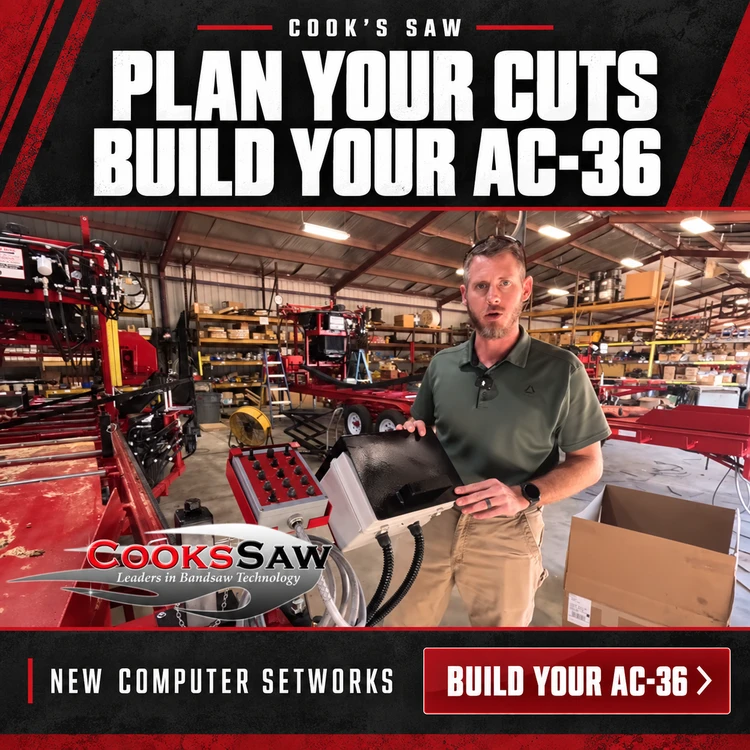
New Sawmill Computer Setworks: Build Your AC-36 Your Way
Oct 7th 2026
Know what you want to cut. Choose how you want to run. Build a sawmill around the work ahead.
Every log starts with a plan. You may be cutting boards for a customer, working toward a finished beam, or switching sizes throughout the day. Either way, you need to know where the next cut belongs—and what you want left when the cutting is done.
Cook’s Saw’s new Computer Setworks brings that planning to the controls. Enter your board thickness, choose your final cant size, and let the system calculate the starting position for that cutting sequence.
Now you can plan the machine, too. Our Build Your AC-36 page lets you choose your power, explore equipment options, and see your build price as you go. Send your selections to Cook’s, and we’ll go over the details with you.
Start exploring your AC-36: Build Your AC-36
Your Next Cut, Clearly in View
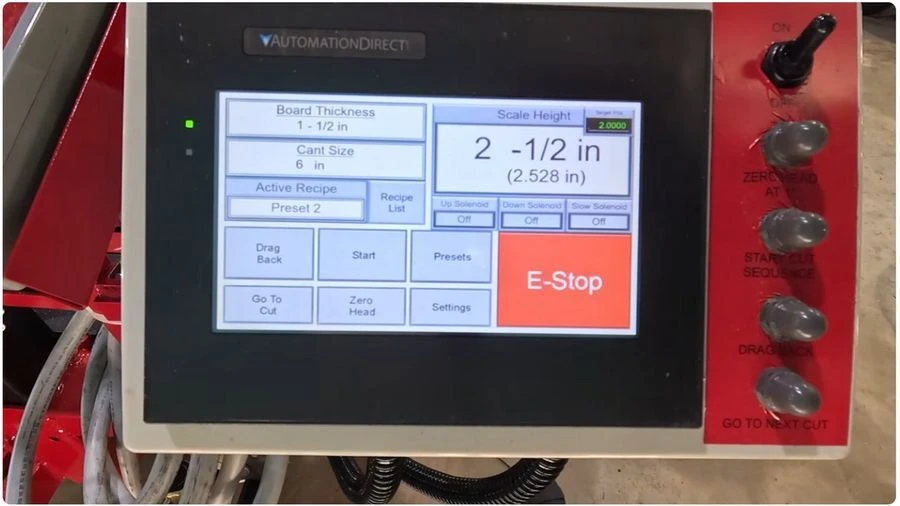
The new setworks display puts board thickness, cant size, scale height, and target position together on one screen. The scale-height readout follows the saw head as it moves, giving you a quick reference at the controls—even when the head is farther away.
The display shows fractional height in 1/16-inch increments, with a decimal readout below. The mill’s magnetic scales remain available, too. You have another way to see where the head is positioned while planning your next cut.
To change board thickness, tap the field and enter the size you want. Change cant size the same way. Your cutting setup is right in front of you.
Plan the Boards and the Cant You Want to Keep
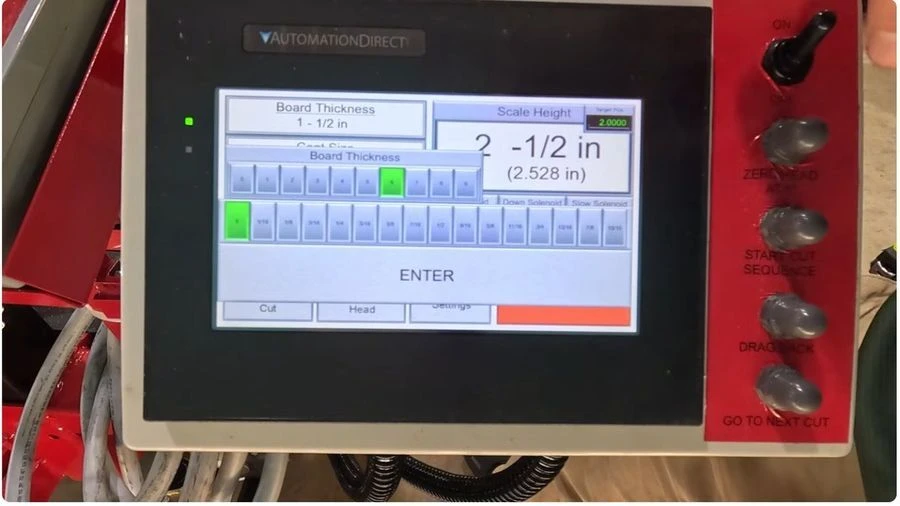
A cant is the squared timber remaining on the sawmill bed. If your job calls for a particular finished cant size, that dimension matters just as much as the boards coming off the top.
In Robert’s demonstration, he sets up to cut 1¼-inch boards while leaving a 6-inch cant. After establishing the starting height and pressing Start, he uses Go-To to position the head for the first cut. The system calculates where that sequence needs to begin, accounting for the selected board thickness, blade kerf, and final cant size.
Why is that useful? Starting at an arbitrary height can leave a thin remainder that doesn’t match the boards you intended to cut. The cant-size function plans the sequence so that remainder comes off the top, while the final cut works toward the cant dimension you selected.
It takes the repeated spacing calculation out of your head and puts it into the setworks. You still make the sawing decisions. The system helps position the head for the plan you’ve chosen.
Save the Cutting Setups You Use Most
The computer stores 12 presets for board thickness and cant size. Save common combinations, then recall them from the recipe list when the job changes.
If you return to the same lumber sizes throughout the week, those saved setups give you a convenient starting point. You can also change the dimensions directly on the screen when a job calls for something different.
A Practical Sequence at the Controls
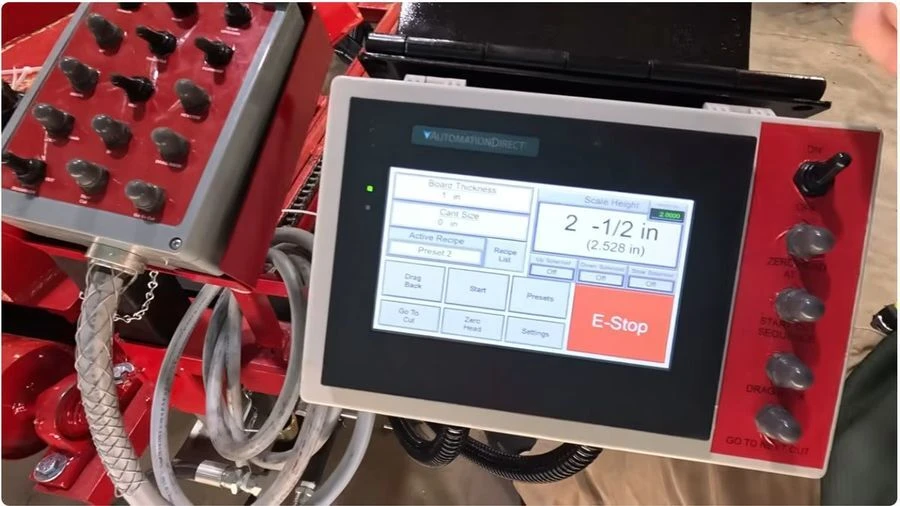
The everyday workflow centers on three functions:
- Start establishes a new cutting sequence at your chosen starting position.
- Go-To positions the head for the next cut in that sequence.
- Drag Back raises the head so the drag-back fingers can clear the remaining cant and bring the sawn board back toward the operator as the head returns.
These functions are available on the touchscreen, the computer control box, and the hand-held remote box. The computer stays at its station; the remote’s 15-foot cord lets you change operating position for a different line of sight.
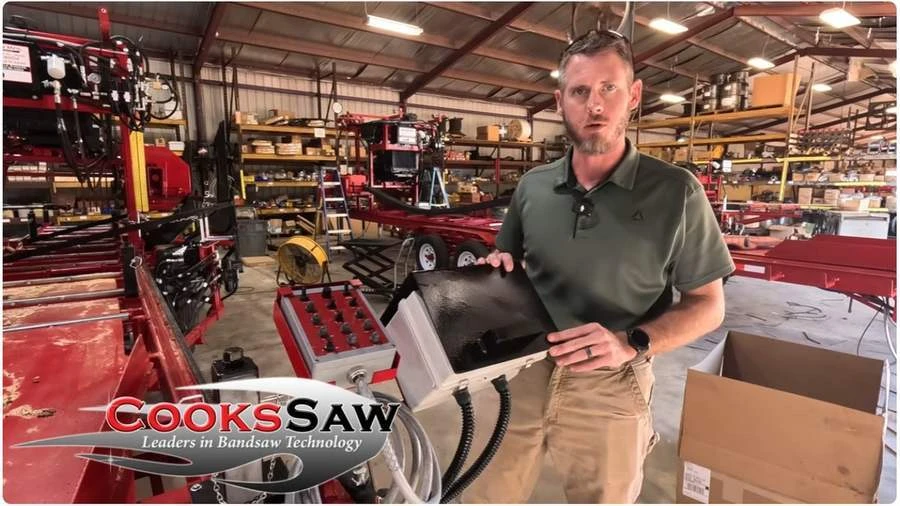
Robert’s video walks through the sequence, presets, and settings. Watch the complete demonstration below.
Watch Robert’s demonstration on YouTube
The system comes with a manual, and Cook’s can walk you through questions. One useful detail from the demonstration: if you move the head while the computer is switched off, the scale must be re-zeroed before returning to computer operation. Follow the manual for setup and operating procedures.
Now Build the AC-36 Around Your Work
Choosing a sawmill means thinking beyond the next board. What power fits your location? How will you handle logs? Which options belong on the machine from the beginning? What equipment will support the rest of your operation?
The AC-36 builder gives those questions a place to start.
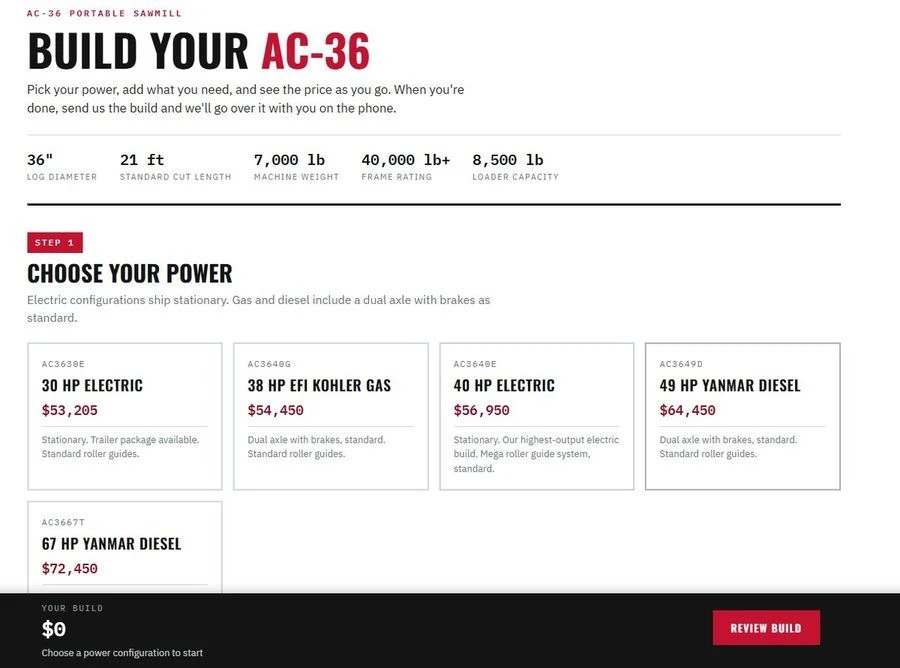
1. Choose Your Power
Compare electric, Kohler gas, and Yanmar diesel configurations. The page explains what each selection includes, including stationary and trailer arrangements.
2. See What Comes With Your Mill
Review the standard equipment, from log handling and head controls to the gravity off-load roller and included box of 10 bandsaw blades.
3. Select the Options That Fit the Work
Explore Computer Setworks, powered taper rollers, a live belt, a laser sight guide, and other available choices. The builder identifies factory-only options so you can consider them during the original build. Computer Setworks is listed as an option and is included on the 67 HP Yanmar diesel configuration.
4. Think Through the Whole Operation
Review extra blades, spare parts, sharpeners, setters, and yard equipment. Board edgers and resaws are discussed with Cook’s by phone so the equipment can be configured with you.
5. Review Your Selections and Send Your Build
Watch the price update as you choose. At the end, review your build, add your contact information, and tell us what you’re sawing. Use “Send This Build to Cook’s” to start the conversation, or print your build for reference.
You don’t need every answer before you begin. Your selections give us something specific to discuss. Sending a build is a starting point for that conversation; it is not an order.
Build Your AC-36. Let’s Talk Through the Details.
Start with the lumber you want to produce and the way you want to work. Explore your power configuration, consider Computer Setworks, and choose the options that matter to your operation.
Then send your build to Cook’s. We’ll review it with you, answer your questions, and help you work through the details.
Prefer to talk first? Call Cook’s Saw at 1-800-473-4804.